1. Background Login Method
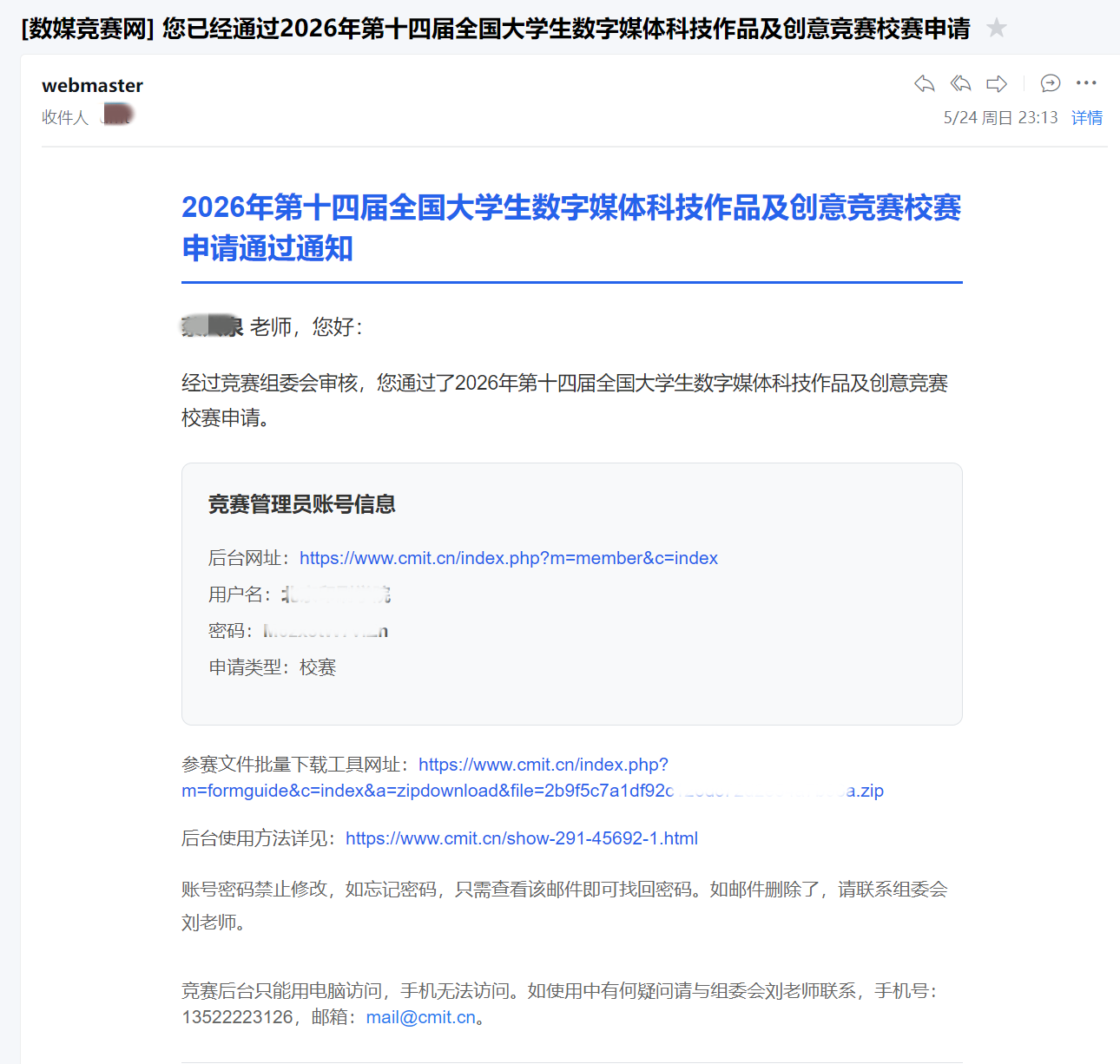
find the exclusive school competition mail that the media competition official sends to the provincial competition application mailbox, and log into the provincial competition management background using the official website, exclusive account number and initial password in the mail.
The provincial competition management background and the student competition entrance are the same website. Only the operation permission, jump page and function module are different between the two. After logging in, the system will automatically match the corresponding permission page.
2. Works List Page
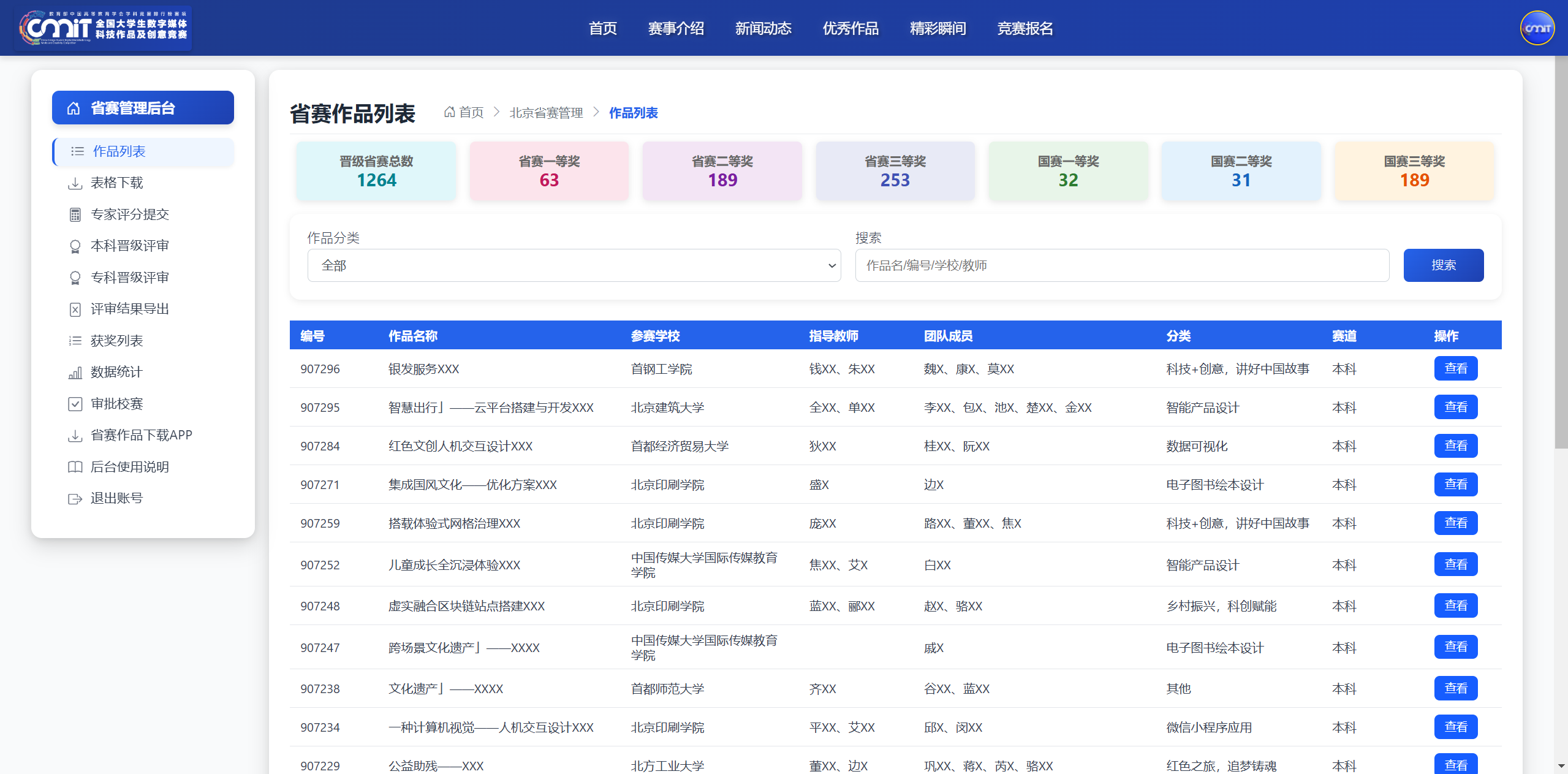
the backstage works list shows all the works promoted to the provincial competition in this province and city, and relevant works can be found through classification and search.
3. Form Download
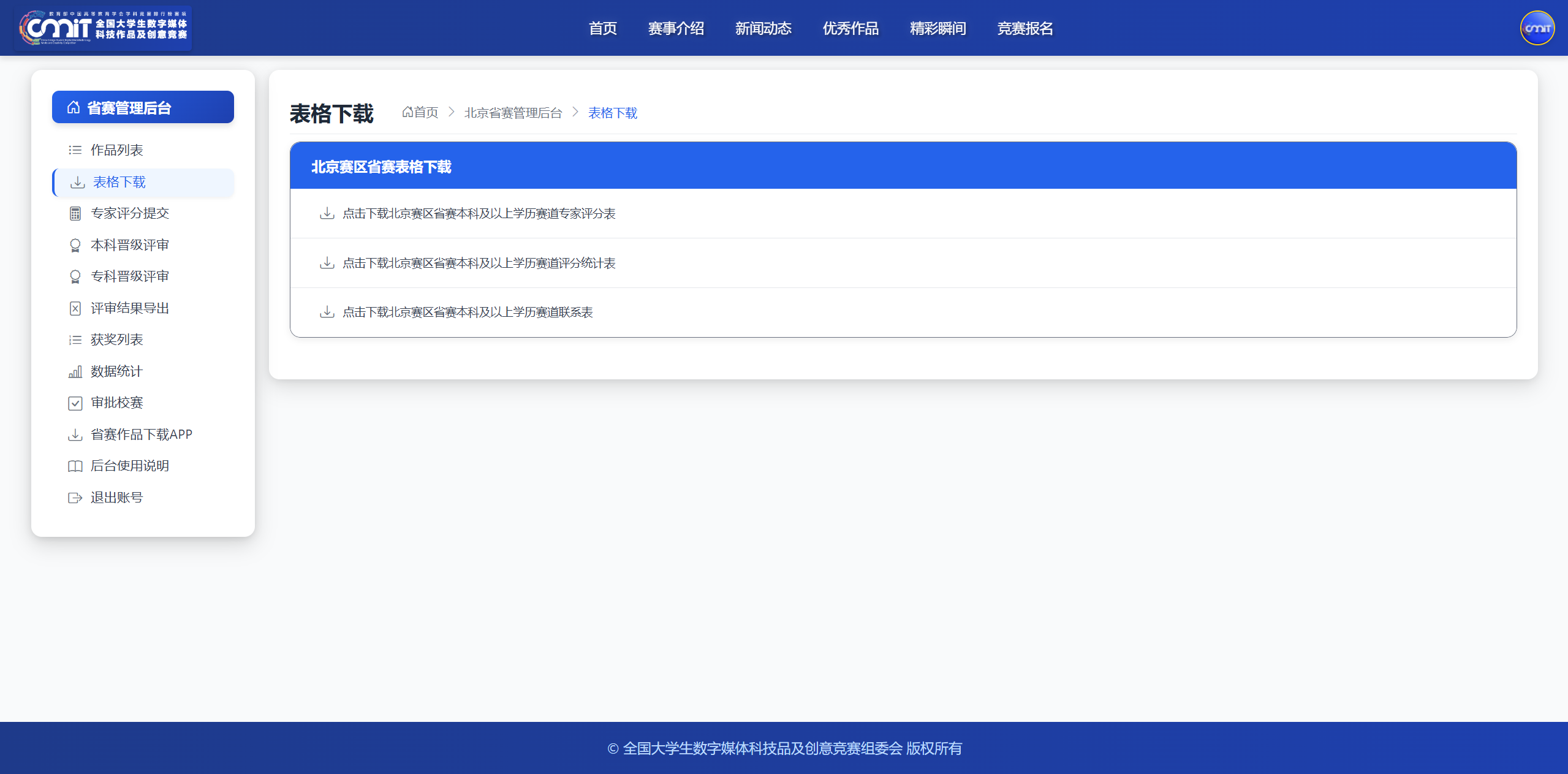
the provincial competition form can only be viewed after the evaluation of the school competition is completed, so as to avoid missing data and information caused by students' supplementary transmission and modification of works. The system provides three types of official forms with the following purposes and specifications:
1. Expert Rating Sheet: Use A4 paper to print vertically, print in triplicate, and send it to the corresponding review experts for scoring. After scoring, the experts sign and confirm it, and then recycle it uniformly, and then transcribe the scoring results to the summary scoring table.
2. Summary Rating Table: Uniform transcription of the effective evaluation results of the corresponding work numbers in the expert scoring form; Once the illegal works are found through verification, the unified registration will be 0 points, and the promotion qualification will be canceled. Don't review those works offline for promotion review. It will be more convenient and effective to use the promotion review function later.
3. Entry Contact Form: Summarize the contact information of teachers and students of all participating teams for information check and event notification during the competition.
4. works download APP
before starting the expert review, the entries of the whole school should be downloaded in batches in advance to ensure the normal development of the review.
1. Equipment requirements
It is recommended to use a high configuration with sufficient storage space. Windows computer to prevent download interruption, file damage.
2. Download Process
click "Work Download APP" on the left side of the background, download and decompress the compressed package, put the decompressed two files in a directory, run the bat program, and the system will automatically download all of them in batches. School competition approved works.
3. Complete identification
the page prompts "the program is finished, please press the enter key to continue..." that represents the completion of the download, you can close the run window. The program supports resumable transmission, downloaded files will be automatically skipped, and missing files can be downloaded repeatedly.
4. Exception Handling
check the number and size of files after downloading: if there are a large number of 0KB abnormal files, the hard disk space is generally insufficient, and download them again after cleaning up the storage space; If only a small number of files are abnormal, the corresponding works can be retrieved, and a full set of materials such as undertaking, screenshots of works, reply video, PPT, competition compression package, etc. can be manually downloaded on the viewing page.
V. Expert Score Submission
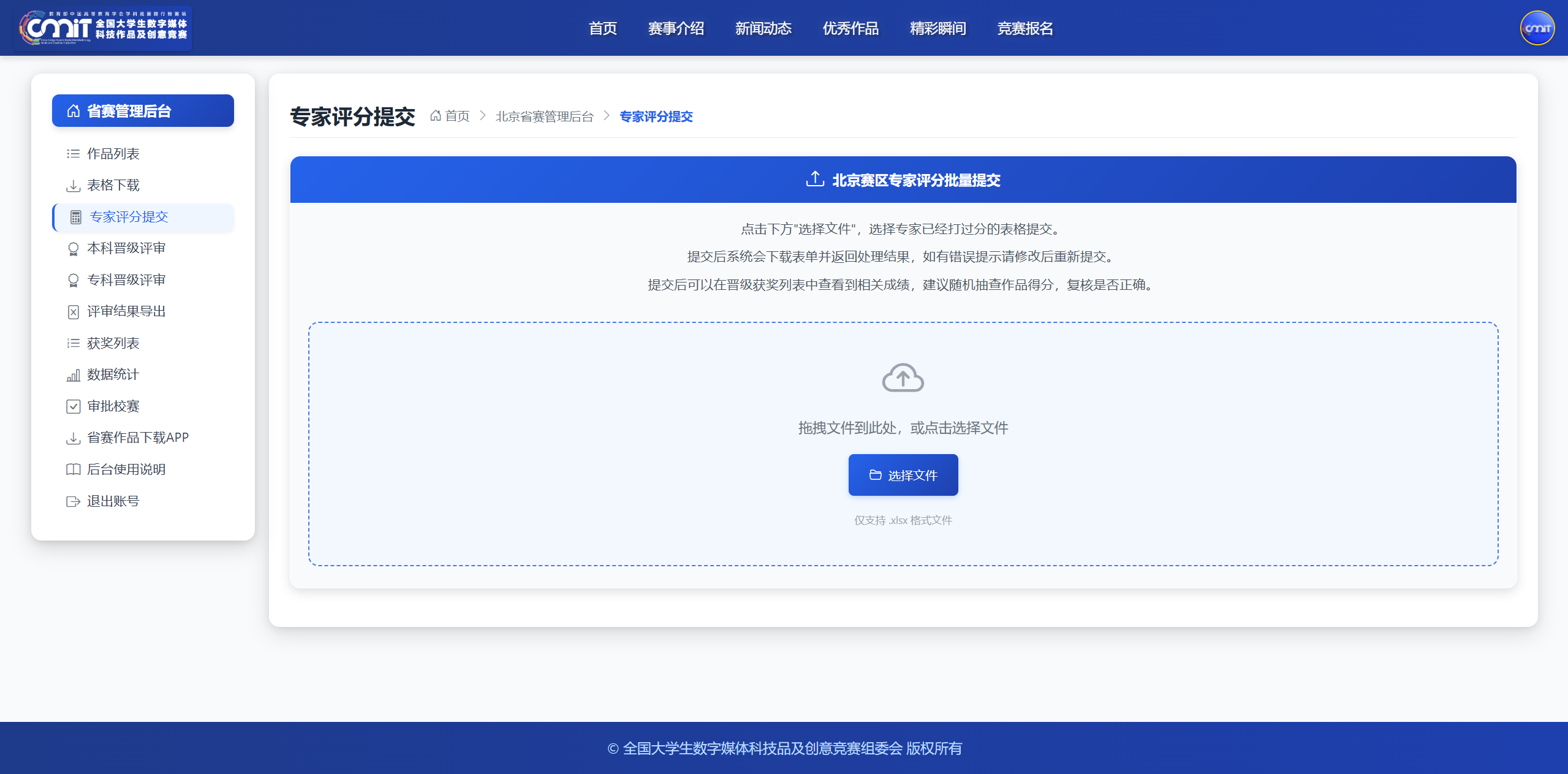
1. After entering the summary scoring form, drag the completed form to the file upload area, or click the "Select File" button to upload the relevant form.
2. The system automatically refreshes the import status every 5 seconds, and the page displays "processed" as the upload is successful.
3. After the upload is completed, you can click the "Undergraduate Promotion Review" or "Junior College Promotion Review" module on the left to conduct subsequent promotion screening. If you submit an error, correct the contents of the form according to the system prompt and upload it again.
6. promotion review
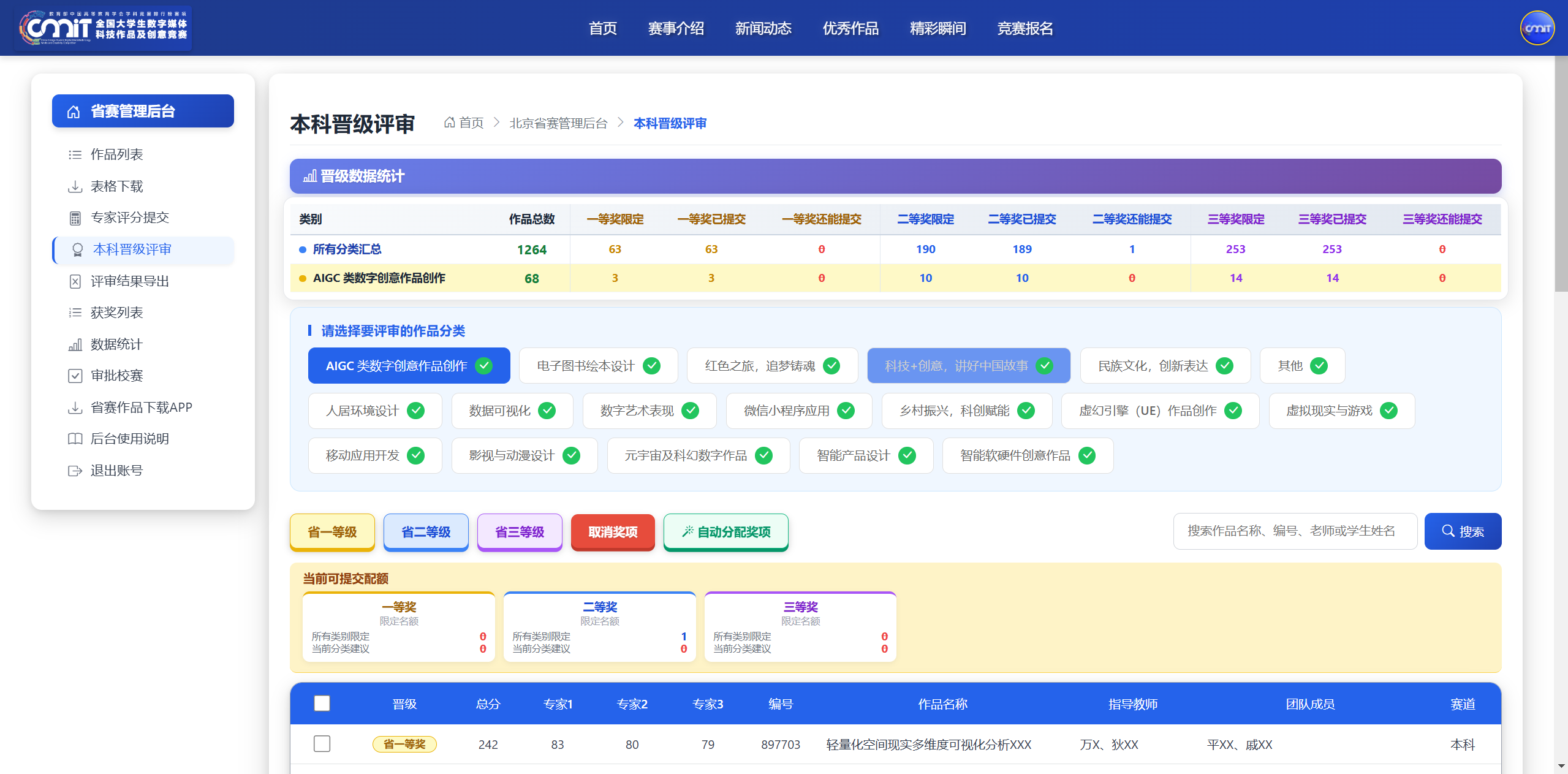
1. The judging dimension can be switched according to the participating track; When a certain track produces promotion works, a green check will be displayed after the track name, which is convenient to confirm that those tracks have completed the judging classification.

2. The page displays the overall award statistics of the competition in real time, which is convenient to control the evaluation rhythm and count the promotion situation.
3. If the number of awards for some better works is not considered, and the types and places of awards are determined equally according to the results for all classified entries, then 「 automatic allocation of awards ", the system will be based on the proportion of promotion required by the competition rules. , how much is the total score, automatically review the corresponding classified works for awards to reduce the workload of the reviewers. You can also click after setting the award level of certain works. 「 auto Allocate Awards button, the system will deduct the number of awards for the work that has been reviewed according to the promotion ratio, and then review the awards for other works.
7. Promotion Result Export
After the provincial competition evaluation work is completed, click "Export of Evaluation Results" to download the form without adjusting the width of the form, and print it vertically on A4 paper. According to the requirements, the official seal of the corresponding department of the school shall be stamped, and the electronic version shall be scanned and submitted to the mailbox designated by the organizing committee for mail@cmit.cn.
List of 8. promotion awards
check the exported review result form with the background "winning list" data one by one to ensure that the winning list, work information and participant information are accurate.
Column Changes After 9. Provincial Tournament
in order to prevent data changes, after the provincial competition, expert score submission, undergraduate promotion review and Junior College promotion review will not be able to view and modify.
10. technical support
if you have any questions about background operation and competition process, please contact the official technical director of the competition:
contact number: 13522223126
official mailbox: mail@cmit.cn
ten 1 conclusion
I wish all provinces and cities a successful completion of the organization and evaluation of the provincial competition, and wish all participating teachers and students another success!