1. Background Login Method
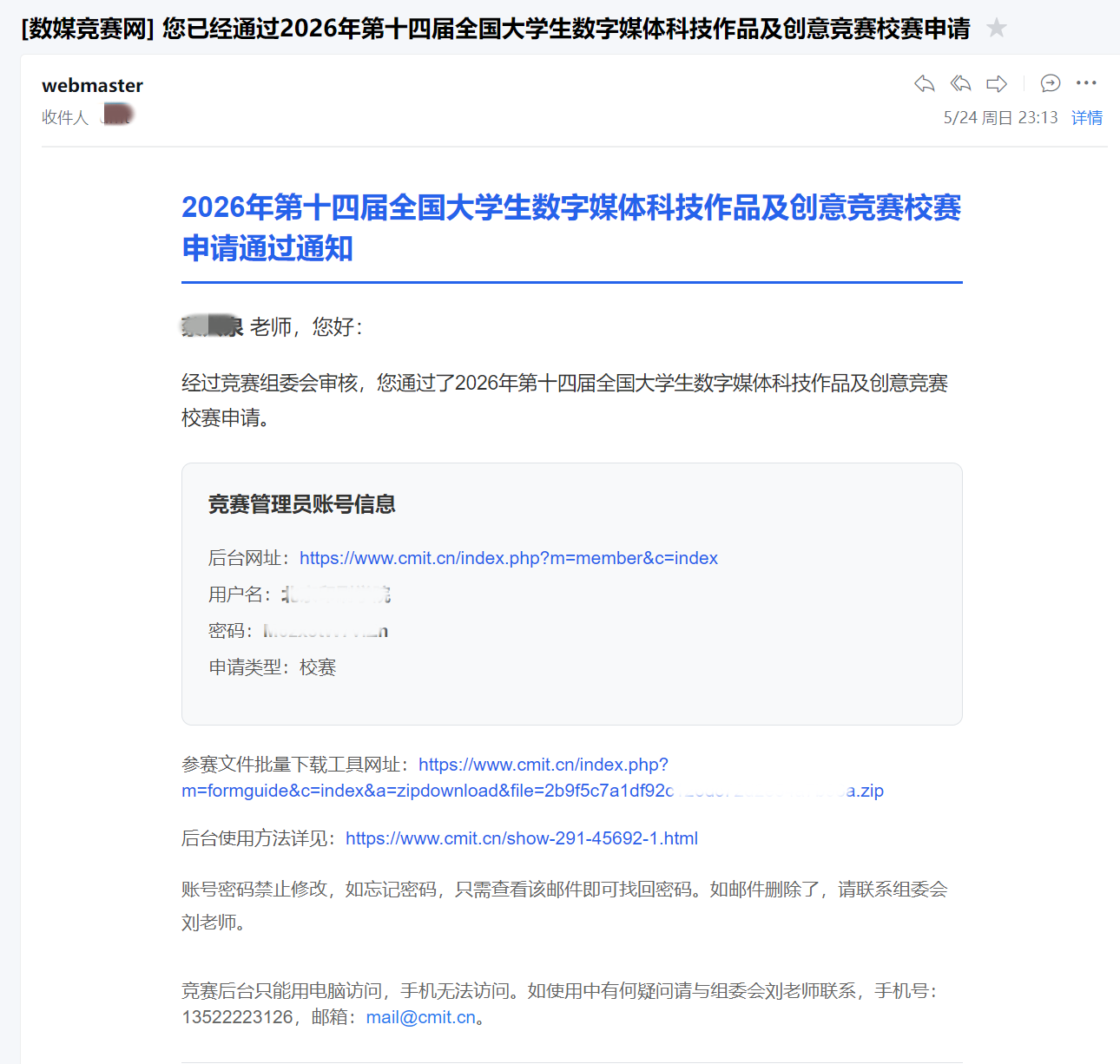
find the exclusive school competition mail sent by the official media competition to the school competition application mailbox, and log into the school competition management background using the official website, exclusive account number and initial password in the mail.
The school competition management background and the student competition entrance are the same website. Only the operation permission, jump page and function module are different between the two. After logging in, the system will automatically match the corresponding permission page.
2. Works List Page
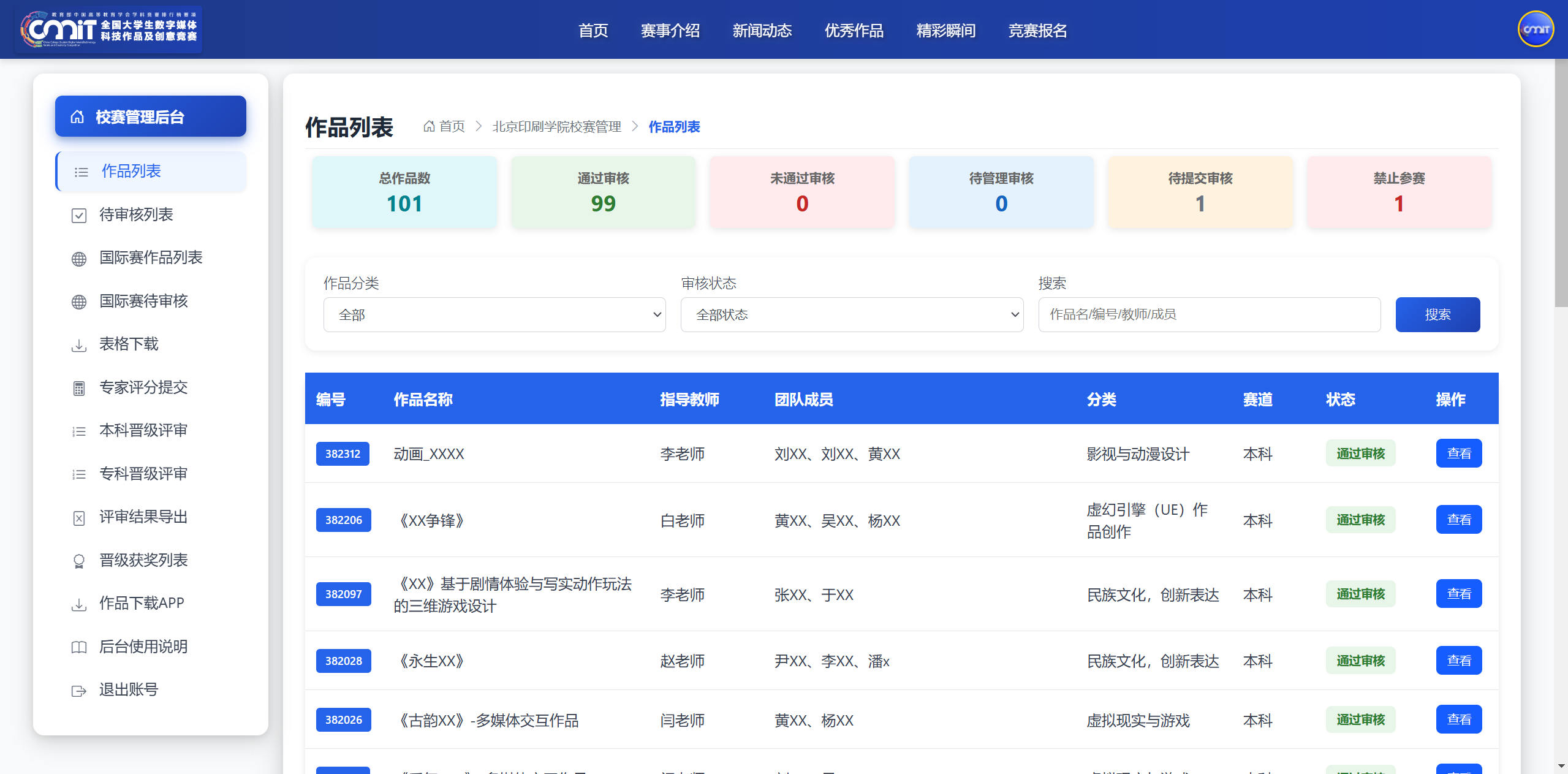
there are five types of work review statuses in the background work list. The description and processing methods of each status are as follows:
1. Through the audit: The work has passed the examination and approval of the school competition, and can wait for the evaluation, promotion and award-winning results of subsequent competitions to be publicized.
2. Not approved: If the work fails to pass the preliminary examination, students are required to revise the work information and materials according to the system rejection reasons and submit it again for examination.
3. To be reviewed by management: The students have completely submitted their work materials and are waiting for the school competition administrator to review. The review progress and review rhythm are arranged by the school competition administrator.
4. To be submitted for review: The upload of student work materials is incomplete, or the "Submit for Review" button in the lower right corner of the page is not clicked after the upload is completed, and the review process has not been entered yet.
5. Prohibition of entry: Members of the work team have committed any illegal acts such as multiple submissions of one manuscript, plagiarism and embezzlement, use of commercial templates, paid competition, copyright infringement, submission of non-original works, etc. The works are directly disqualified from participating in the competition and no appeal is accepted.
Status is pass audit, fail audit, pending management audit the number on the left shows the blue background. Click the work number to enter the audit details page, which supports the secondary adjustment of audit status and verification of work information.
3. Pending Review List
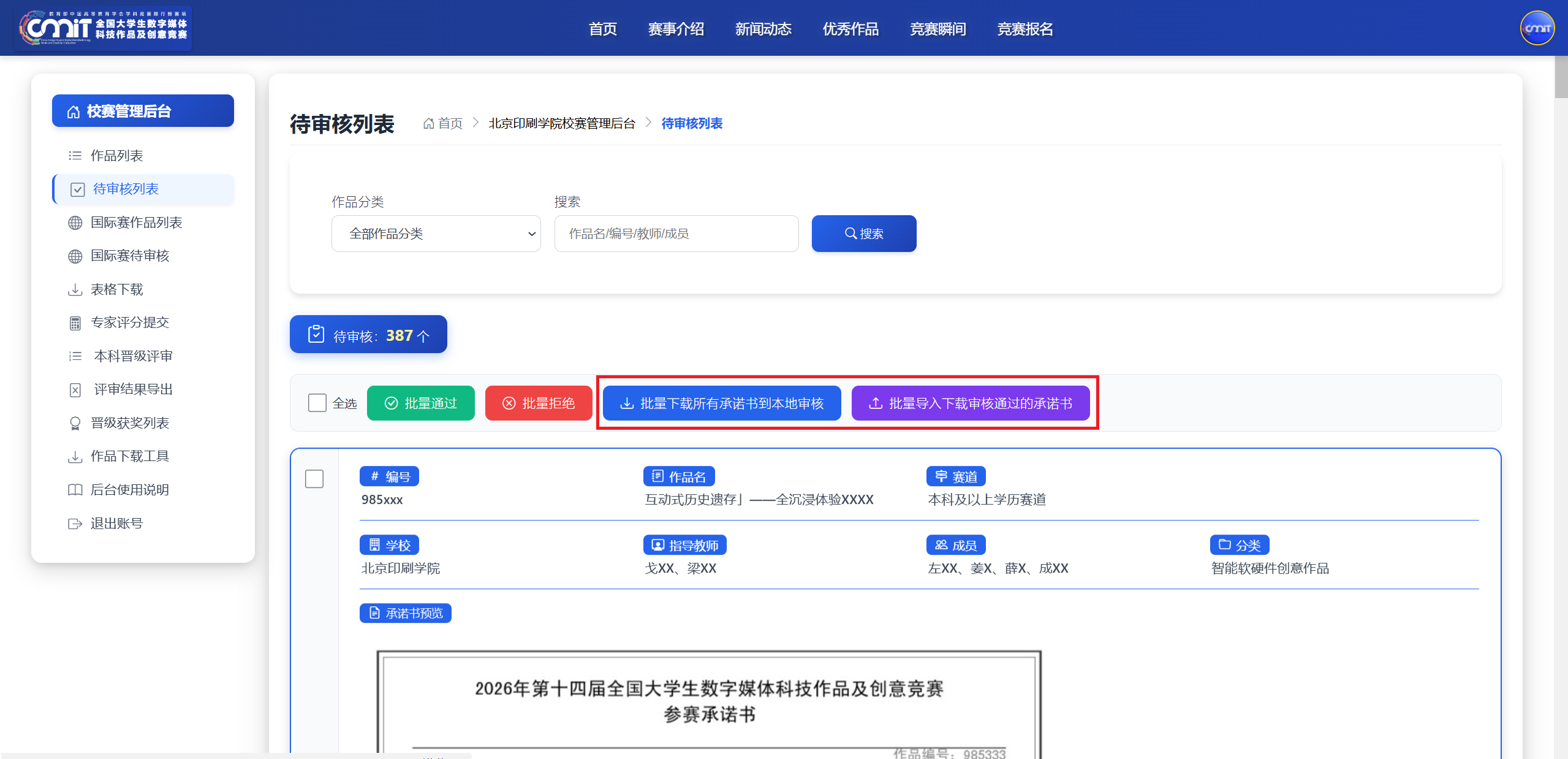
1. Add two new functions
in order to facilitate the commitment reviewer, two new functions are added on the right side of the commitment batch pass and batch reject: 「 batch download all commitments to local review"and 「 batch Import Download Approved Commitment Letter」, it is recommended that the school competition use this function for undertaking review.
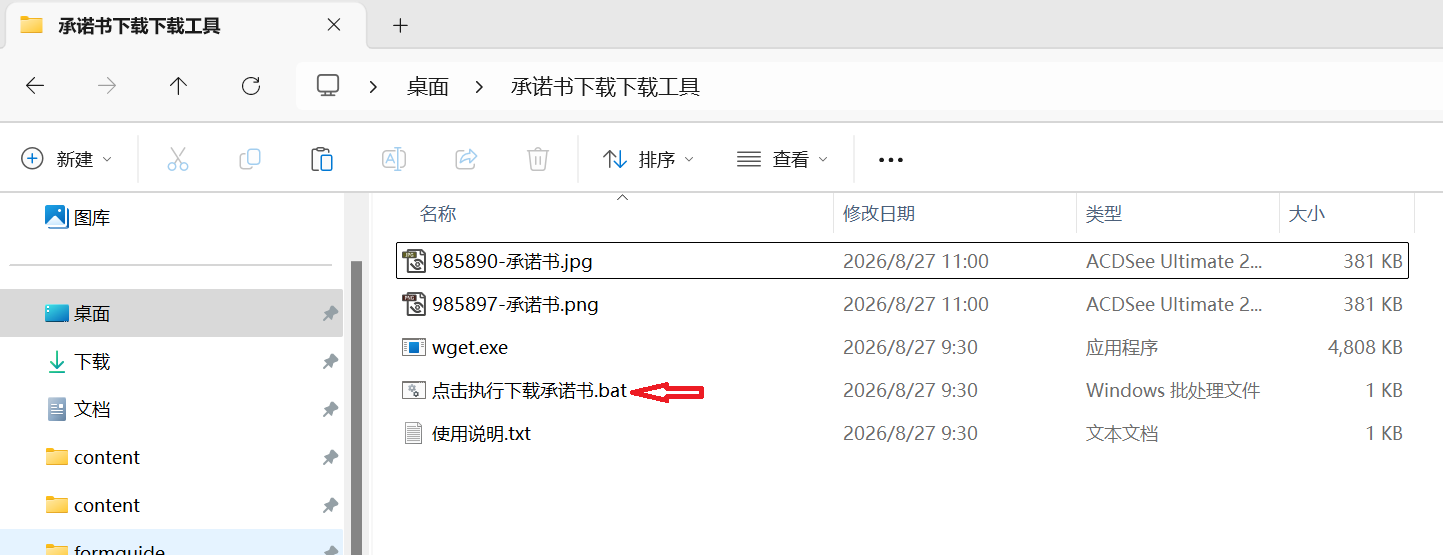
(1) Click 「 batch download all commitments to local review button, after clicking "OK" at the bottom of the pop-up window, A ZIP file will be downloaded. Please decompress the file under the Windows operating system and run the bat file inside. The commitment letter of all the works to be reviewed in our school will be downloaded.. After the review, only the pictures of the approved undertaking will be retained, and the works that fail the review must be removed to avoid passing the review by mistake.
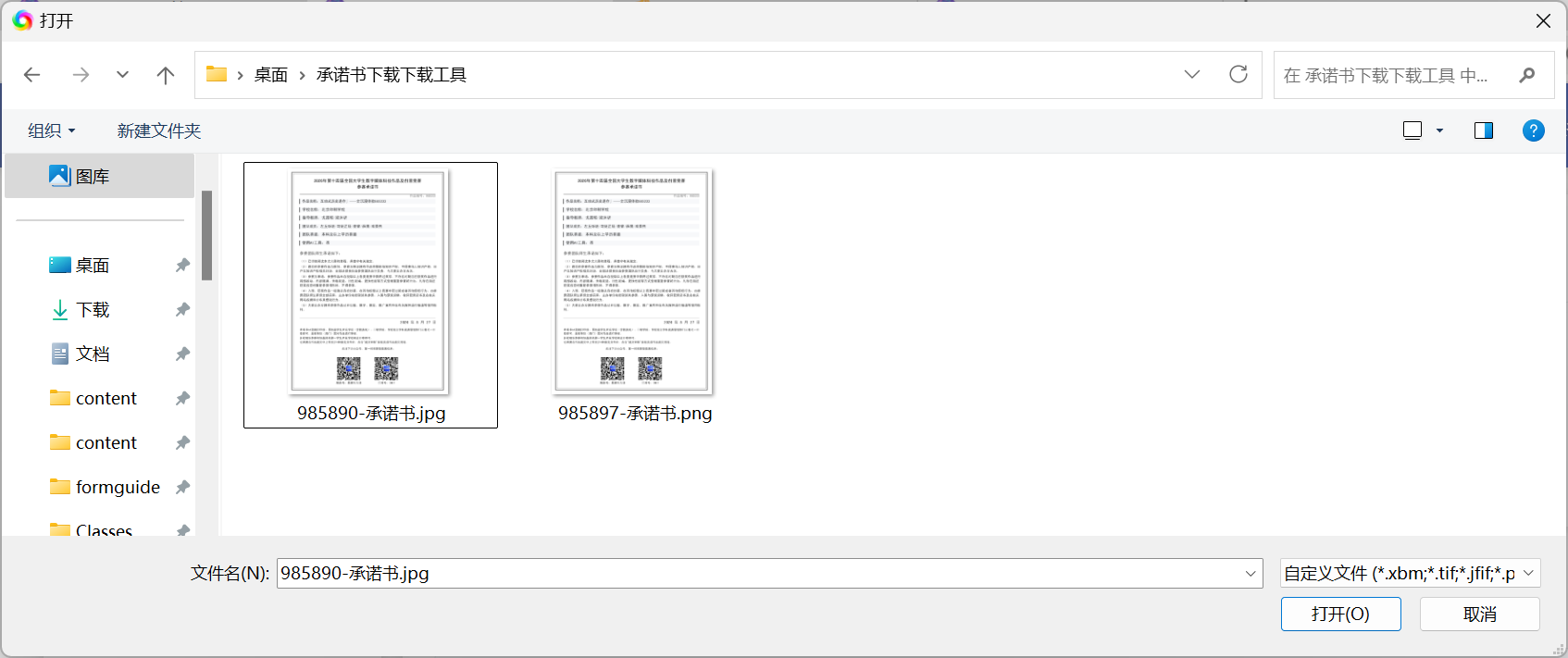
(2) click「 batch Import Download Approved Commitment Letter」 button, click "OK" below the pop-up window to open the file.
Step 1: Please open the folder where the pictures of the letter of commitment are stored (that is, the directory where the pictures are generated after running the bat download tool), and select all the pictures of the letter of commitment under the directory (press Ctrl + A to select all, and then click "Open").
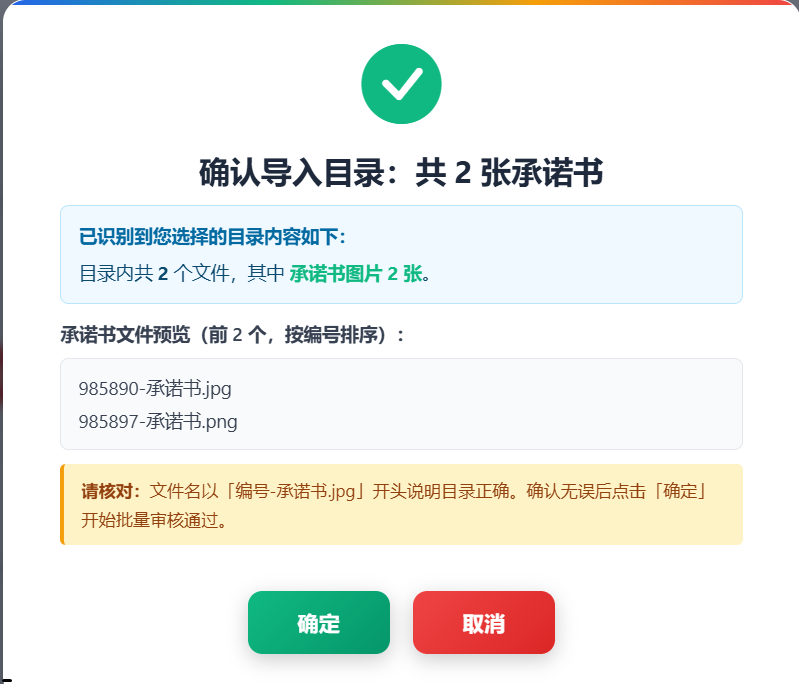
Step 2: The system will list the list of pictures of the letter of commitment identified in the folder for you to check whether the directory is selected correctly. After confirming that it is correct, click "OK" to import the approved works in batches.
(3) Please refer to the following commitment review process to complete the review for the commitment letter that failed the review.
2. Key points of core audit
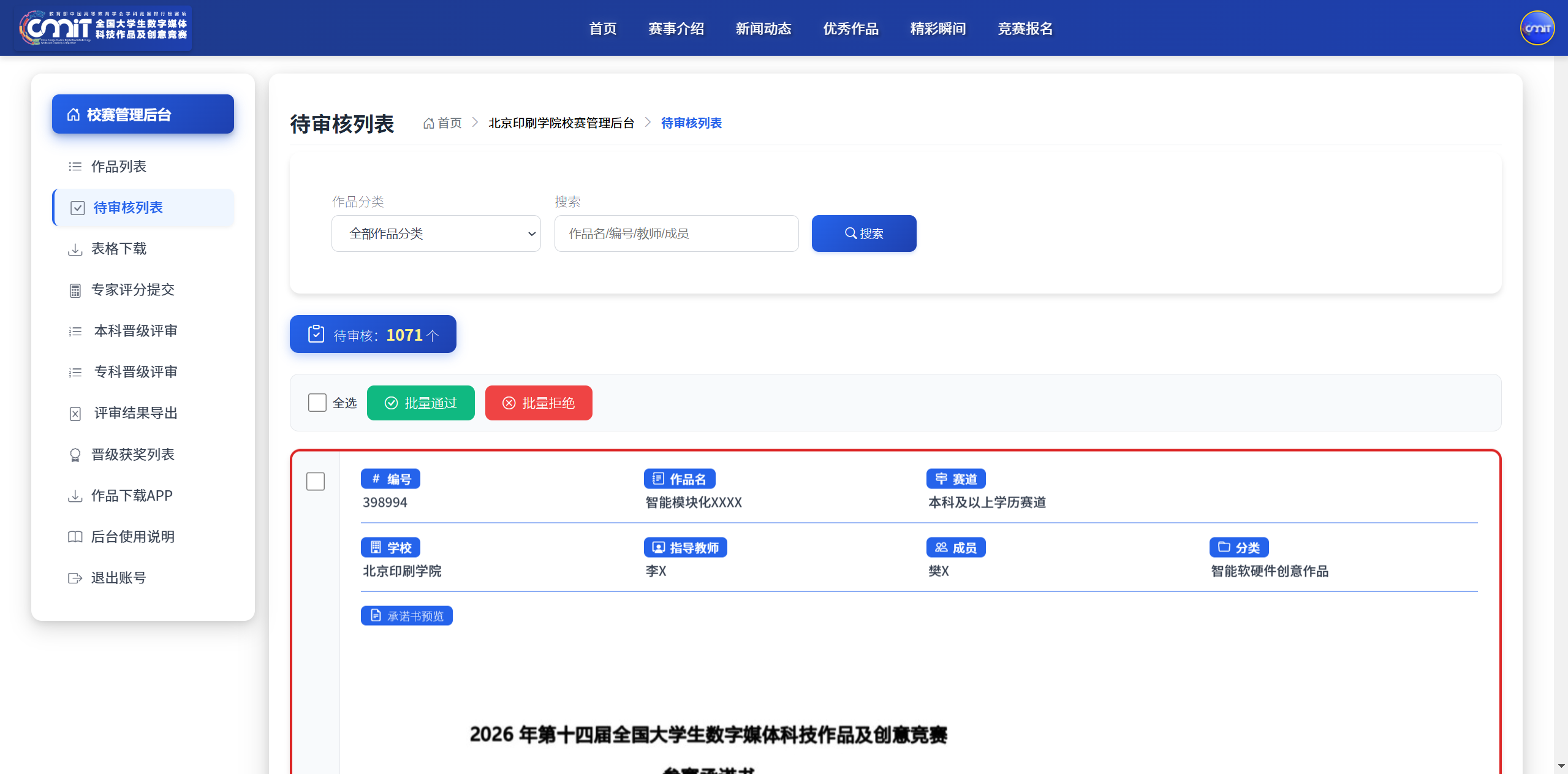
focus on checking the entry commitment and seal qualification: compare the content of the commitment with the student information item by item, and strictly check the validity of the official seal. Only the official seal of the academic affairs office, secondary college and school-level discipline competition management department is recognized..
3. Audit considerations
(1) If students modify the name of the work, the competition track, the information of teachers and students, the school to which they belong, and the classification of the work, but do not update the undertaking synchronously, the undertaking area will display a red border, and such works need to be checked with emphasis.
(2) The commitment letter displays a gray border by default, and the border switches to blue when the mouse is suspended.
4. Single work review operation
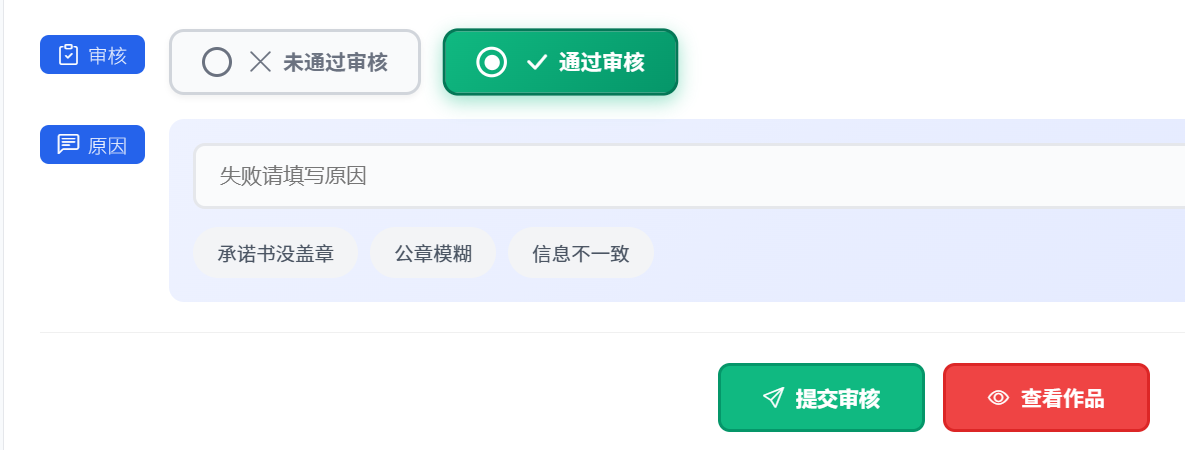
after the review of a single work is completed, click the "Pass Review" or "Fly Review" button to submit the results. For works that are judged to have failed, the reason for rejection should be filled in detail, and system quick remarks (the letter of commitment is not sealed, the official seal is vague, and the information is inconsistent) can also be used to quickly mark the problem.
5. Batch audit operation
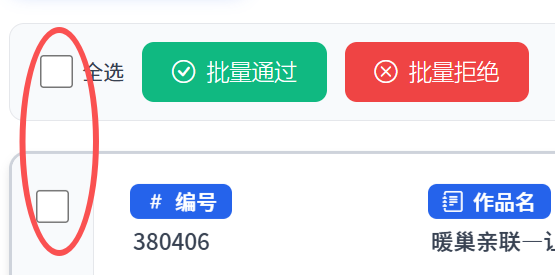
the approved works can be approved by selecting all or manually checking the number, and clicking "batch pass" or "batch reject" to complete batch review.
6. Revision of audit results
if the audit result is submitted incorrectly, you can return to the work list, click the blue number to enter the details page, and modify the audit status again.
4. Form Download
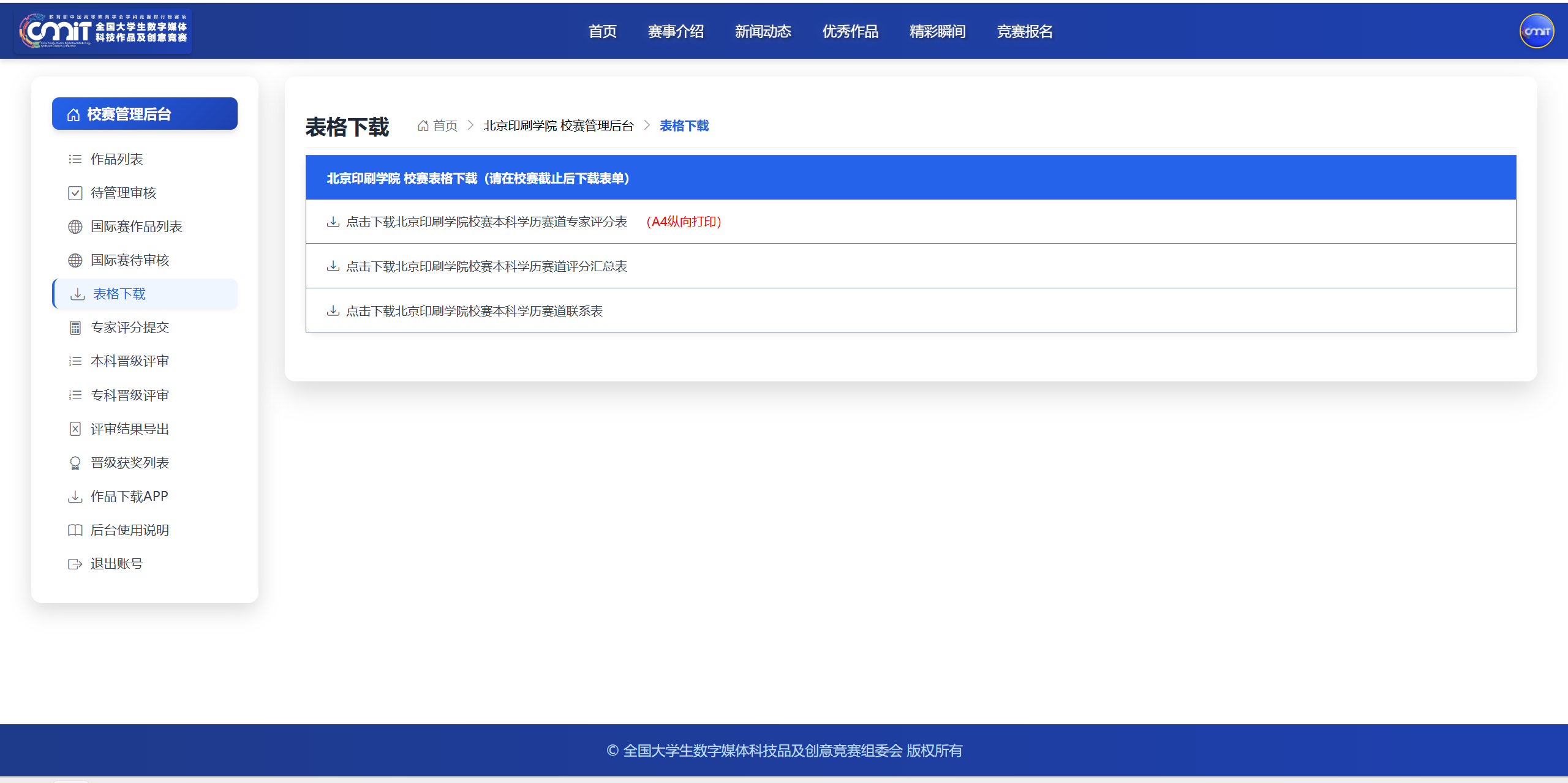
all competition forms should be downloaded after the official deadline of the school competition to avoid missing data and information due to students' supplementary transmission and modification of works. The system provides three types of official forms with the following purposes and specifications:
1. Expert Rating Sheet: Print vertically on A4 paper in triplicate. After the printing is completed, it will be distributed to each evaluation expert for independent scoring. After the expert signs and confirms, it will be recycled uniformly, and then the scoring results will be copied to the summary scoring form.
2. Summary Rating Table: No need to print, uniformly copy the valid evaluation results of the corresponding work numbers in the expert scoring form; Once the illegal works are found through verification, the unified registration will be 0 points, and the promotion qualification will be canceled. There are no subclassifications compared to last year, and all scores are filled in a summary table.
3. Entry Contact Form: no need to print, summarize the contact information of teachers and students of all participating teams for information check and event notification during the competition.
5. Works Download Tool
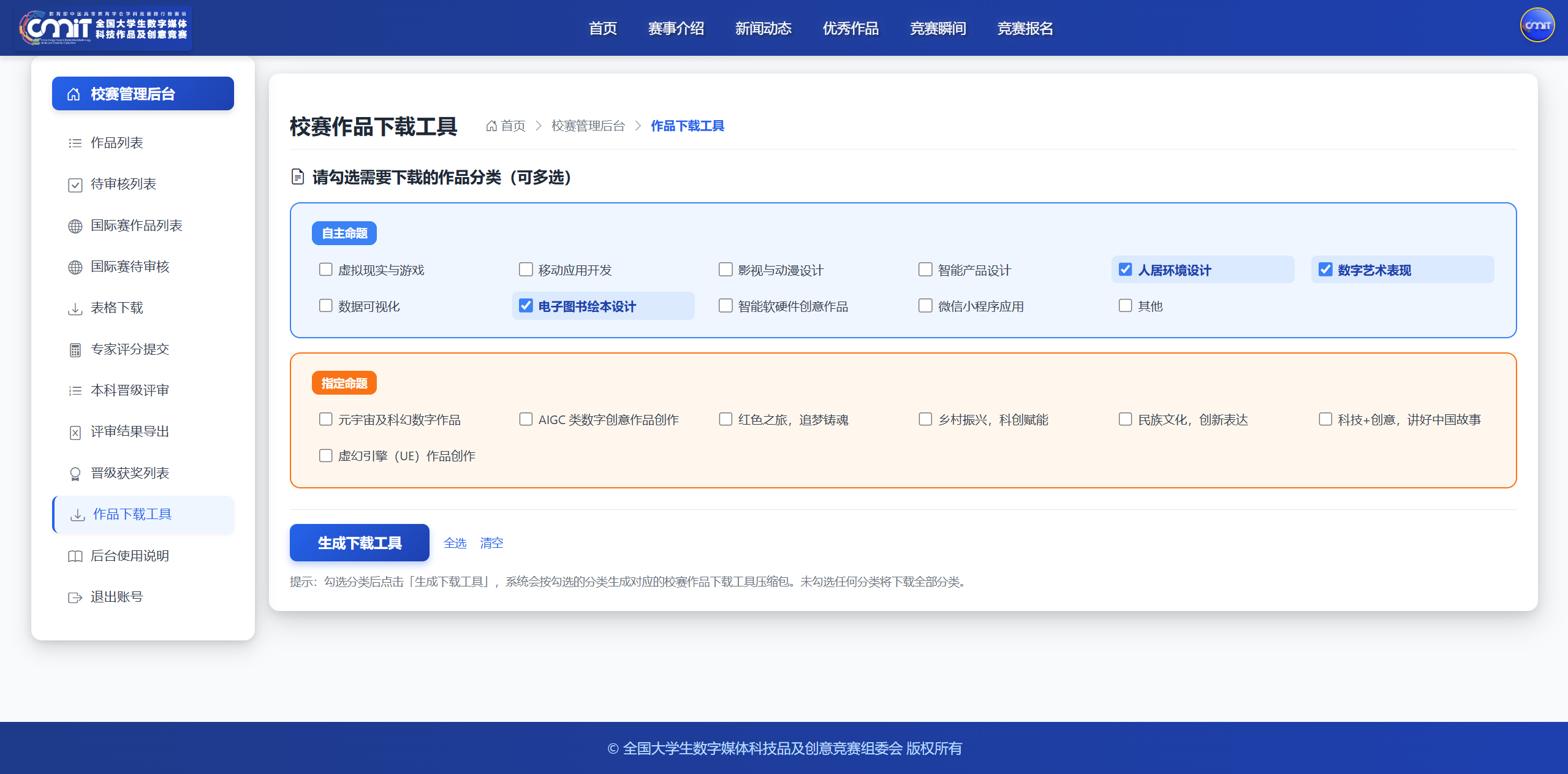
in order to facilitate the simultaneous downloading, distribution and management of entries by many people and computers in the evaluation of the school competition, the download of works is modified from the original mode of clicking on the link to directly download zip files to click on the link to select and classify and download relevant works according to the actual needs of the school competition.
1. Equipment requirements
it is recommended to use a Windows computer with high configuration and sufficient storage space to prevent download interruption and file damage.
2. Download Process
click "Work Download APP" on the left side of the background, download and decompress the compressed package, run the bat program, and the system will automatically download all school competition approved works.
3. Complete identification
the page prompts "the program is finished, please press the enter key to continue..." that represents the completion of the download, you can close the run window. The program supports resumable transmission, downloaded files will be automatically skipped, and missing files can be retransmitted repeatedly.
4. Exception Handling
check the number and size of files after downloading: if there are a large number of 0KB abnormal files, the hard disk space is generally insufficient, and download them again after cleaning up the storage space; If only a small number of files are abnormal, the corresponding works can be retrieved, and a full set of materials such as undertaking, screenshots of works, reply video, PPT, and competition compression package can be manually downloaded.
VI. Expert Score Submission
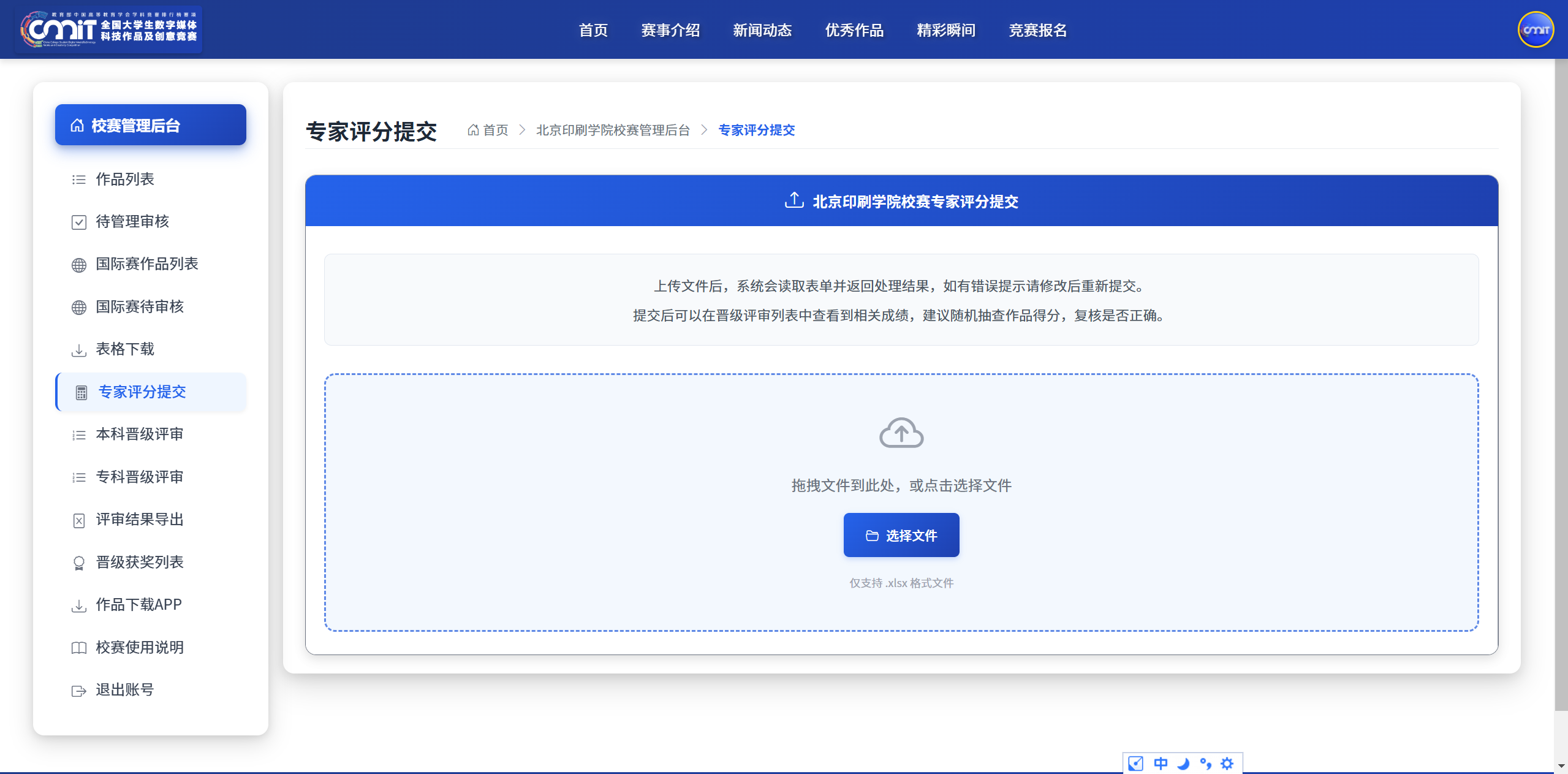
1. After the score entry is completed, drag the completed summary scoring table to the file upload area, or click "Select File" to select the target form to complete the upload.
2. The system automatically refreshes the import status every 5 seconds, and the page displays "processed" as the upload is successful.
3. After the upload is completed, you can click the "Undergraduate Promotion Review" and "Junior College Promotion Review" module on the left to carry out subsequent promotion screening work. If you submit an error, correct the contents of the form according to the system prompt and upload it again.
4 . If any result errors are found in the review, the summary scoring table is allowed. Repeat submission, but note that each submission will empty the previously submitted promotion review data.
7. promotion review
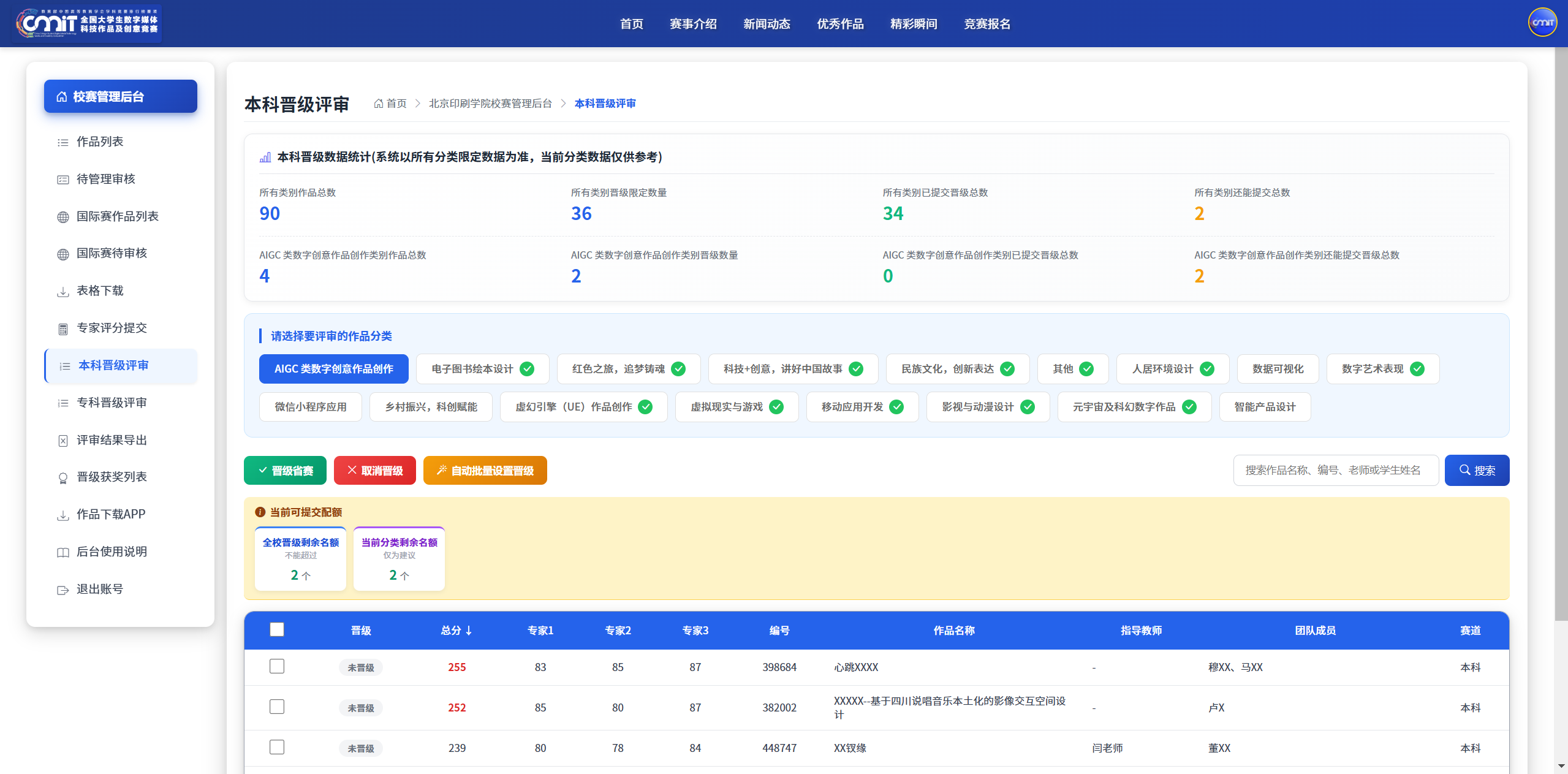
1. You can switch the judging dimension according to the participating track; when a track produces a promotion work, a green check box will be displayed after the track name., it is convenient to view the classification of the completed review.
2. The system will automatically sort the works according to the comprehensive scores of the works. The works marked with red scores will be recommended for promotion by the system intelligently. The final promotion list will be independently determined by the school in combination with the evaluation.
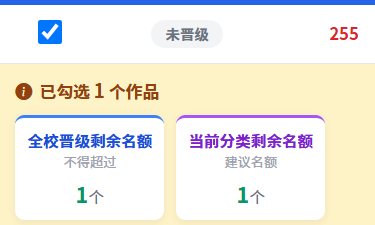
3. The page displays the overall statistics of the competition, the data of each category and the promotion progress in real time. After checking the target works, you can check the checked quantity and the promoted quantity in real time, which is convenient to control the review rhythm and count the promotion situation.
8. Promotion Result Export
after the whole school evaluation work is completed, click "Promotion Results Export" to download the form, the form does not need to be adjusted and can be printed vertically on A4 paper.. According to the requirements, the official seal of the corresponding department of the school shall be stamped, and the electronic version shall be scanned and submitted to the designated mailbox of the provincial competition organizing Committee.
List of 9. promotion awards
1. Data check: Check the exported promotion result form one by one with the background "promotion award list" data to ensure that the promotion list, work information and participant information are accurate.
2. Certificate Download: After the final results of the provincial and national competitions are publicized, the official electronic award certificate can be downloaded in the "Award Download" column on the right side of the corresponding work. In order to facilitate the download of a large number of certificates, you can also click to download the compression package of the school competition certificate to download the award-winning certificates of all teachers and students at one time..
Column changes after 10. school competition
in order to prevent data changes, after the school competition is over, it will not be possible to view and modify the management review, expert scoring submission, undergraduate promotion review and Junior College promotion review.
XI. Technical Support
if you have any questions about background operation and competition process, please contact the official technical director of the competition:
contact number: 13522223126
official mailbox: mail@cmit.cn
XII. Conclusion
I wish all colleges and universities a successful completion of the organization and evaluation of the school competition, and wish all participating teachers and students another success!